
How to Map Your Customer List. Transform Excel & CSV files into Interactive Maps How to Map Your Customer List. Transform Excel into Sales Maps.
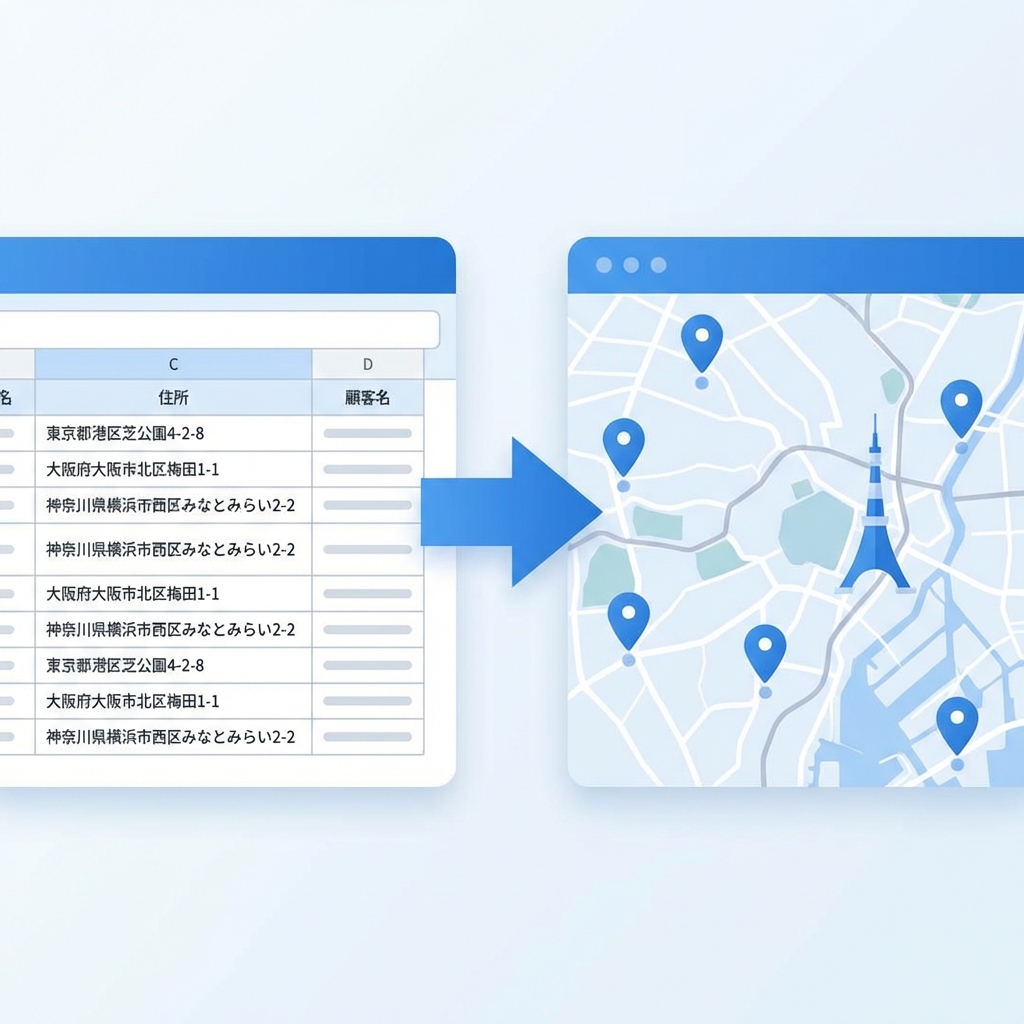
A list of customer addresses in a spreadsheet doesn't show you who is nearby or where you should visit next. Mapping your customer database helps you see locations, next actions, and activities in a single view. Plot customer spreadsheets as interactive pins. Instantly identify nearby visits, routes, and activity logs.
Key Takeaways
The value of mapping customer addresses, step-by-step import instructions, and field execution tips.
Who This Is For
Field sales reps, route managers, customer success, and local services teams looking to minimize travel time.
The Outcome
Turning abstract address data into spatial insights that drive faster decisions and cut down on travel fatigue.
Table of Contents
What is Customer List Mapping?
Customer list mapping is the process of converting company names, address strings, and contact details from Excel, CSV, or Google Sheets into geographic coordinates (geocoding) and rendering them as interactive pins on a digital map.
For professional field teams, basic pins are not enough. High-performance mapping integrates deal stages, next action dates, activity logs, and owners, turning a static layout into an actionable customer CRM database.
Crucial Point to Remember
The ultimate goal of mapping is not just aesthetic. It is about prioritizing visits on the go, identifying nearby gap-fill opportunities, and executing phone calls, route navigating, and logs without switching between several apps.
The Hidden Costs of Text-Only Lists
While spreadsheets are excellent tools for storing data records, they fail on the road. Without visual context, reps are forced to mentally reconstruct distance and locations.
Wasted Mileage
Failing to notice nearby clients, resulting in driving back to the same area multiple times.
Missed Follow-Ups
Key dates get buried under countless rows, causing sales touchpoints to expire unnoticed.
Manual Copy-Pasting
Constantly copying addresses from spreadsheets into mobile map apps for individual routing.
Major Benefits of Customer Mapping
1. Uncover Immediate Visit Opportunities
Viewing clients on a map exposes which prospects sit around your scheduled appointments. Reps can easily insert spontaneous drop-ins to build stronger relationships with minimal extra travel.
2. Clean and Intuitive Route Planning
A visual interface instantly highlights illogical loops and crisscross driving. Instead of navigating by gut feeling, field teams can coordinate their travel logically, maximizing daily face-to-face engagements.
3. Actionable Follow-Up Scheduling
Color-coding pins based on status or next-contact dates lets you filter the map for "active opportunities" or "idle customers." Visually spotting cold leads simplifies pipeline recovery.
Step-by-Step Spreadsheet Mapping
Converting databases to map visualizations requires simple formatting and logical validation. Here is the best practice guide:
Prepare Spreadsheet Columns
Ensure each customer record has a clear company name and a single, formatted address column. Add phone numbers, deal status, and next scheduled events to populate your dashboard.
Export File as a CSV
Download your database from Excel or Google Sheets in CSV format. Using standardized UTF-8 encoding ensures that international characters or special symbols compile properly.
Upload to Map CRM and Validate Pins
Import the file into your mapping software, mapping the headers to the corresponding database fields. Check for warning markers or misplaced pins due to partial address strings.
Log Visits and Navigate Instantly
Deploy the updated map to mobile reps. They can click on nearby customers to initiate calls, launch turn-by-turn navigation, update statuses, and log visit reports on the fly.
Selecting the Right Mapping Tools
Standard mapping databases let you put icons on a background layer, but professional environments require CRM tools built for fieldwork.
| CSV/Excel Import | Look for automated mapping mechanisms that let you match columns directly, minimizing manual alignment. |
|---|---|
| Pin Coordinates Editing | Address search sometimes places pins slightly off target. Reps should be able to drag-and-drop pins to correct positions. |
| Mobile Adaptability | Ensure the mapping database runs smoothly on mobile web interfaces and screens, avoiding performance lag when loading 1,000+ pins. |
| Activity Logging | Reps must be able to record meeting outcomes immediately on the map, keeping records accurate and up-to-date. |
| Schedule Planning | Color-coding pins based on status, next visit dates, and priority helps reps plan their day efficiently. |
| Team Collaboration | Changes made by one rep should sync immediately to the cloud, preventing duplicate visits to the same client. |
Streamlining Field Operations with GoSul
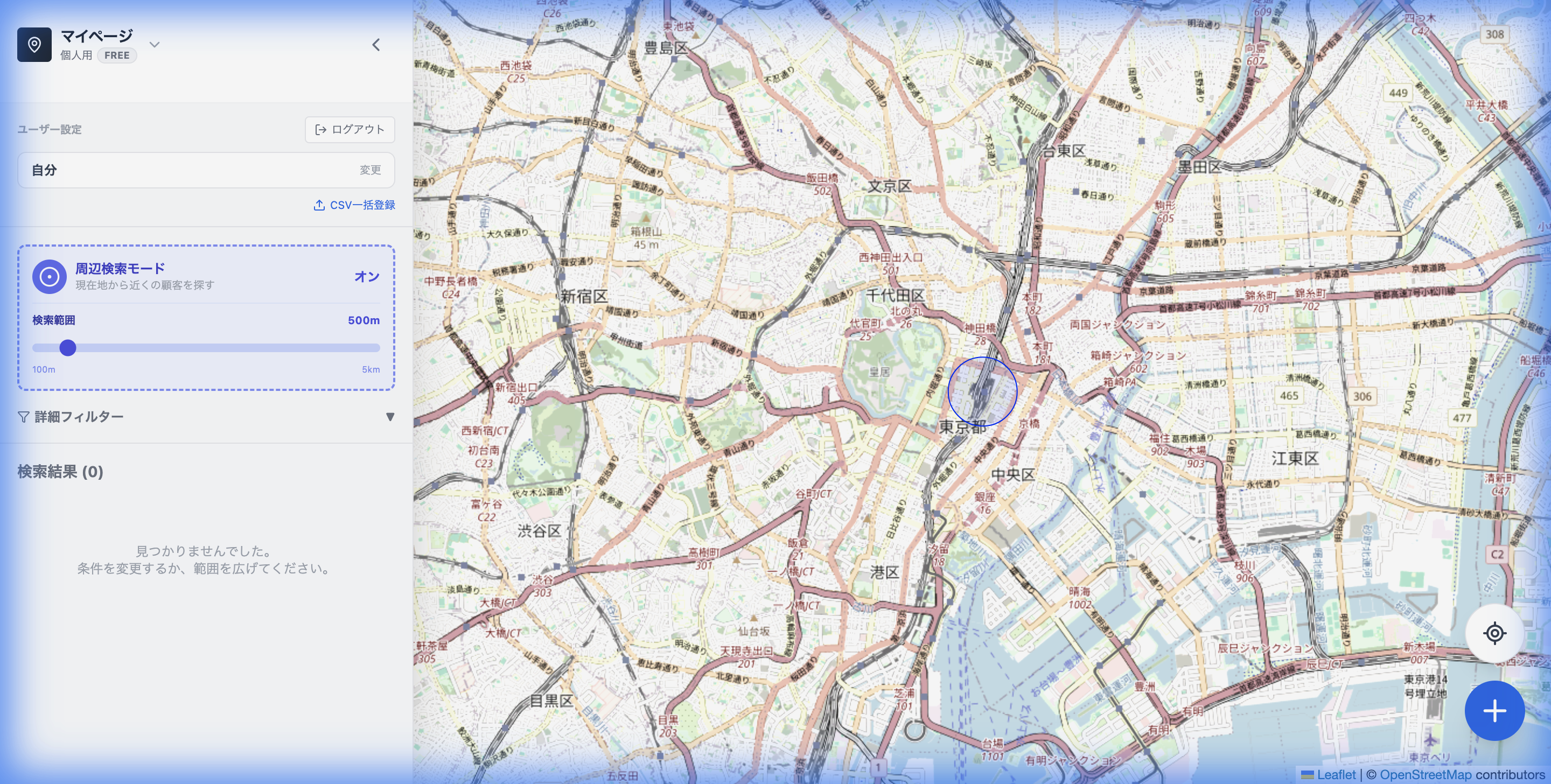
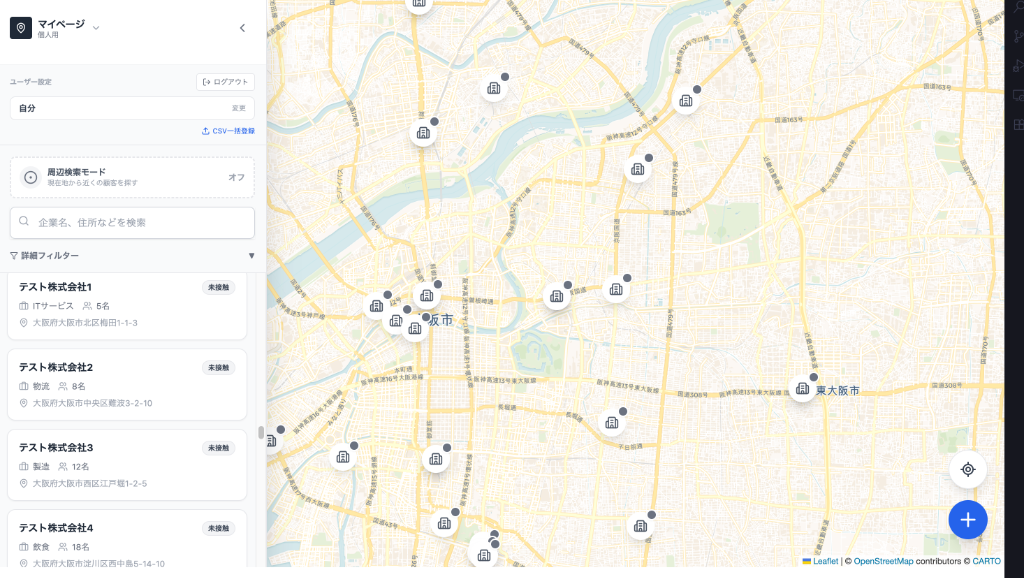
GoSul is a mapping CRM built for field sales teams to transform customer lists into interactive maps. It supports CSV imports, mobile map rendering, GPS proximity tracking, and quick access to calling, routing, and reporting in a single interface.
Setup on Desktop
Import Lists & Align Fields
Import company names, addresses, and phone numbers. The system geocodes records and displays them as color-coded pins.
Execute on Mobile
Locate Customers & Log Progress
Sales reps can locate close accounts on the road, navigate with Google Maps, make calls, and record visit logs on-site.
Frequently Asked Questions
Can I map my customer list directly from Excel?
Yes. If your spreadsheet contains clear address strings, you can convert it to a CSV file and upload it. Pre-formatting city names and postal codes ensures high geocoding accuracy.
How does this compare to standard Google Maps?
Google Maps is built for point-to-point navigation. For professional field sales, you need to manage contact history, pipeline status, and next steps for hundreds of accounts, which requires a dedicated mapping CRM.
Is there a free trial option?
Yes, GoSul offers a free-tier plan that supports up to 30 customer pins, allowing you to test the mapping and routing features before subscribing.
What steps should I prioritize after mapping my accounts?
We recommend starting with three basic actions: finding accounts close to your location, updating client records right after a visit, and setting next contact dates to keep your pipeline active.
Summary: Visualized Sales Maps Drive Faster Decisions
Mapping customer records reveals opportunities that remain hidden in spreadsheet rows. By placing locations, route schedules, and histories in a visual layout, teams can optimize their travel, reduce admin overhead, and close more deals.
Get Started with GoSul
Map your customer list and plan your visit schedules
The free plan supports up to 30 customers. Web Premium is $8 USD/month with no customer registration limit. Check the purchase screen for the applicable price and billing terms; in-app purchases follow App Store terms.